
For schools, workplaces and organizations
Attendance that takes care of itself.
Zentril records check-ins with a face scan at your site, keeps everyone’s schedule in their pocket, and gives admins one dashboard for the requests that need a decision.
- Check in
- Face scan
- Updates
- Live, in seconds
- Runs on
- Any phone
Education
Classes, labs, exams and orientation days. Advisers as lead managers.
Workplaces
Shifts and teams. Managers see and record their own people.
Organizations
Any group that meets on a schedule and needs to know who came.
Features
Everything attendance needs, and nothing you have to chase.
The scan does the recording. The app does the reminding. The dashboard shows you only what still needs a decision.
Face-scan check-ins
A site scans a member’s face and the check-in or check-out is recorded. No cards to carry, no codes to remember, nothing to tap.
Live on every phone
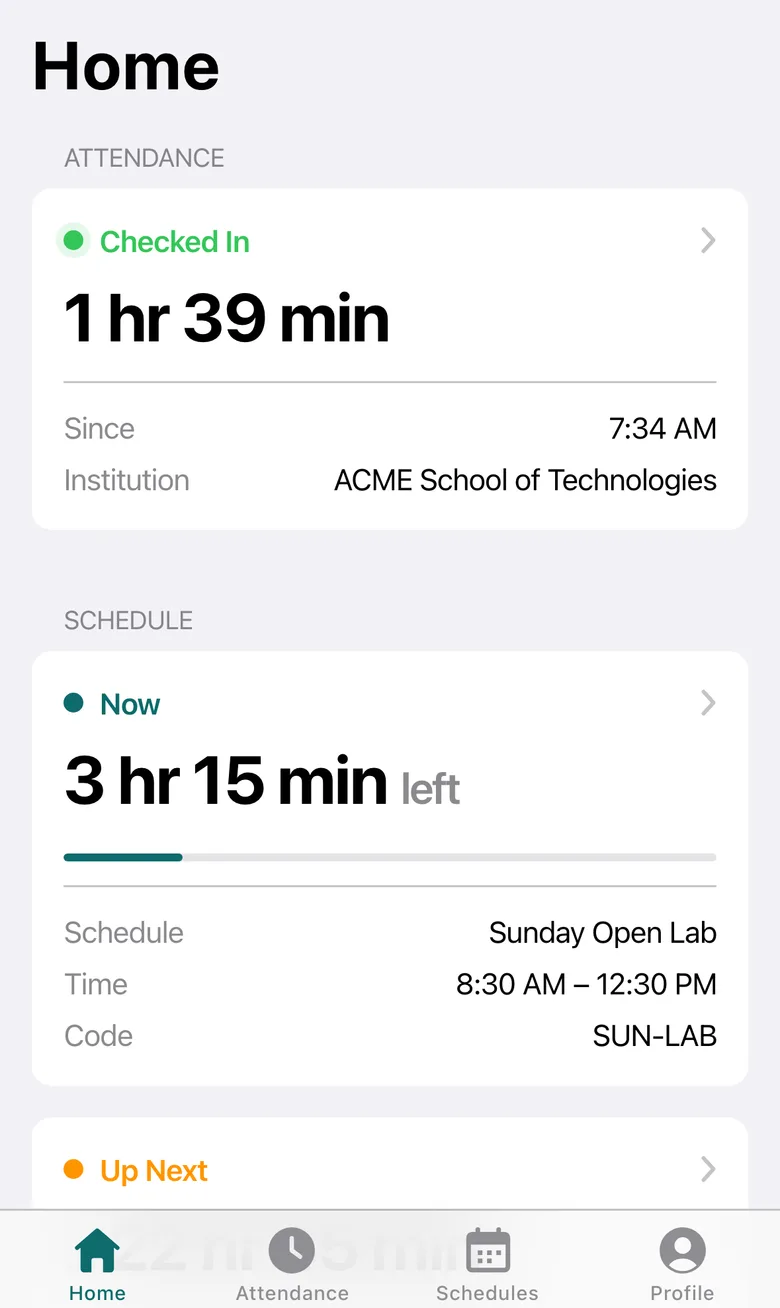
Home shows Checked In and the time on the clock since the scan. Entries appear within seconds, even after the phone was asleep.
Schedules with Now and Up Next
Global schedules for the whole institution, team schedules for a manager’s people. Time left, a progress bar and what starts next, in the institution’s timezone.
Requests, not spreadsheets
Members add a missing entry or dispute a wrong one from the phone. The lead manager or an admin decides, with a remark the member sees.
Roles and reporting lines
Members, supervisors, managers and admins. Several managers per person with one lead, and tags like Teacher or Principal to filter by.
Add to Home Screen
Installs from the browser in a few taps, with its own icon, full screen, and light or dark to match the phone.
The apps
One system, two apps.
Members live in a phone app that feels native. Admins and managers run everything from a desktop dashboard.
The phone app
iOS-style · light and dark · installable
Home
Checked in, since when, and what’s on now.
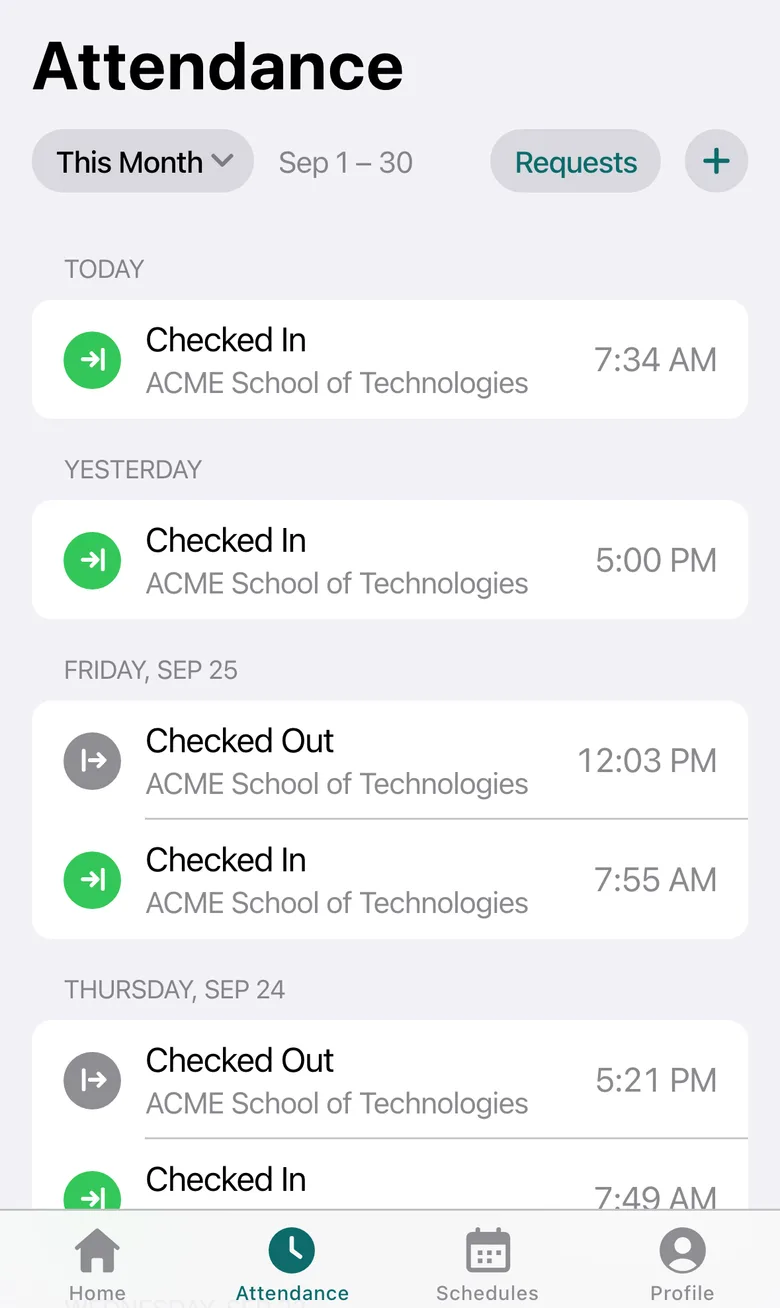
Attendance
Every entry by day. Add a missing one or dispute one.
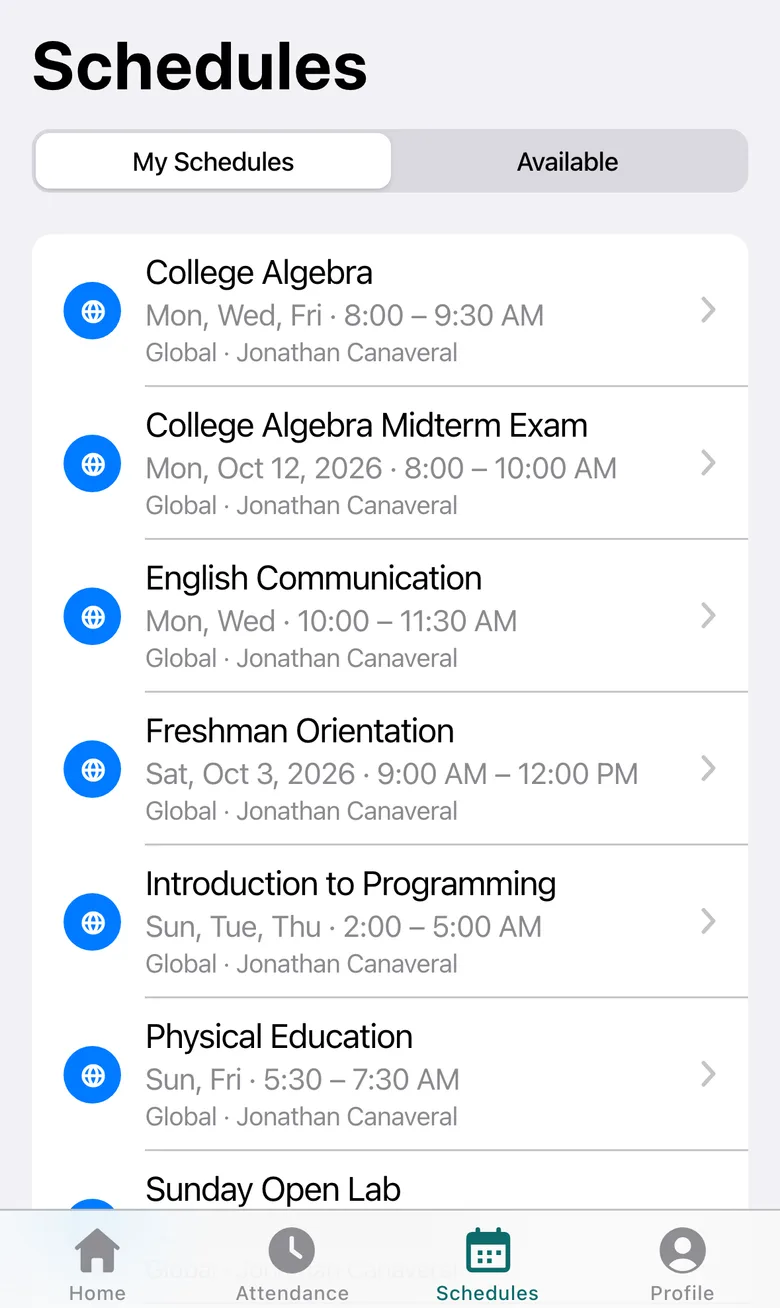
Schedules
Yours and the ones you can ask to join.
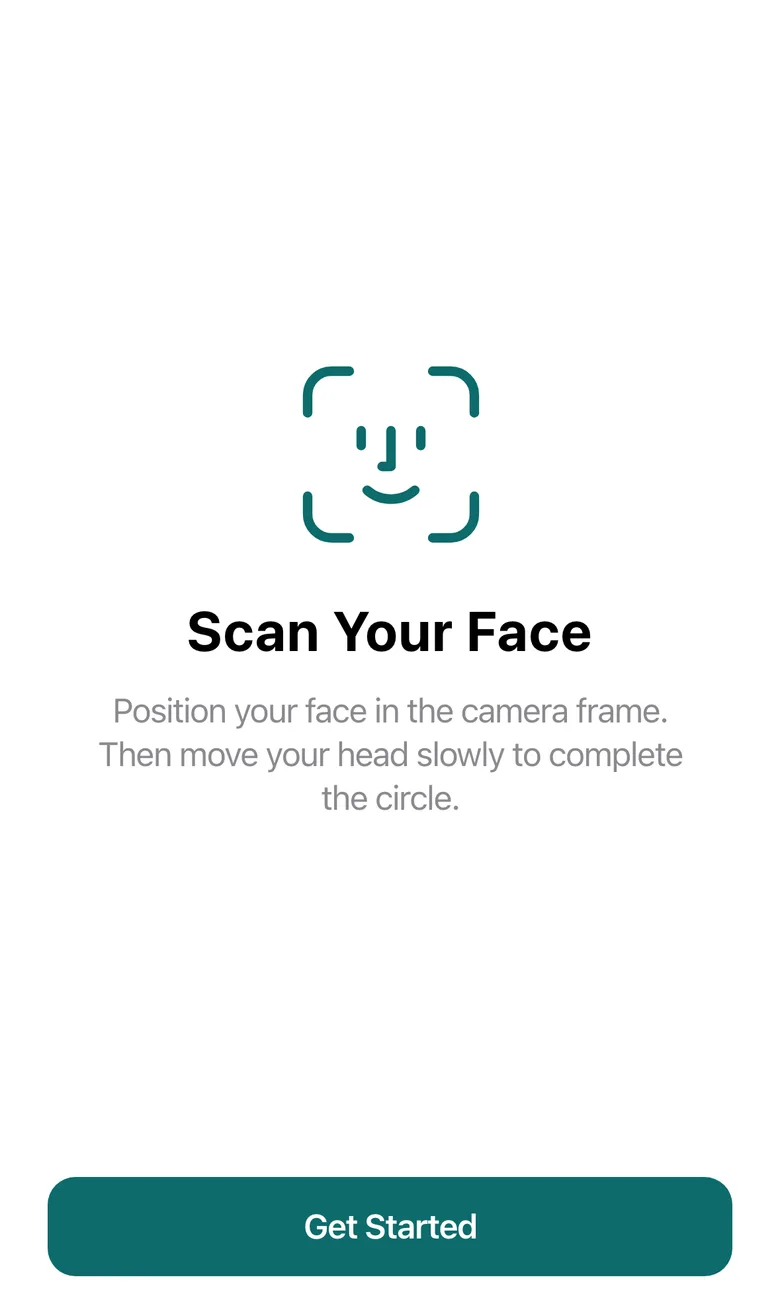
Onboarding
Enrollment code, details and a short face scan.
The admin dashboard
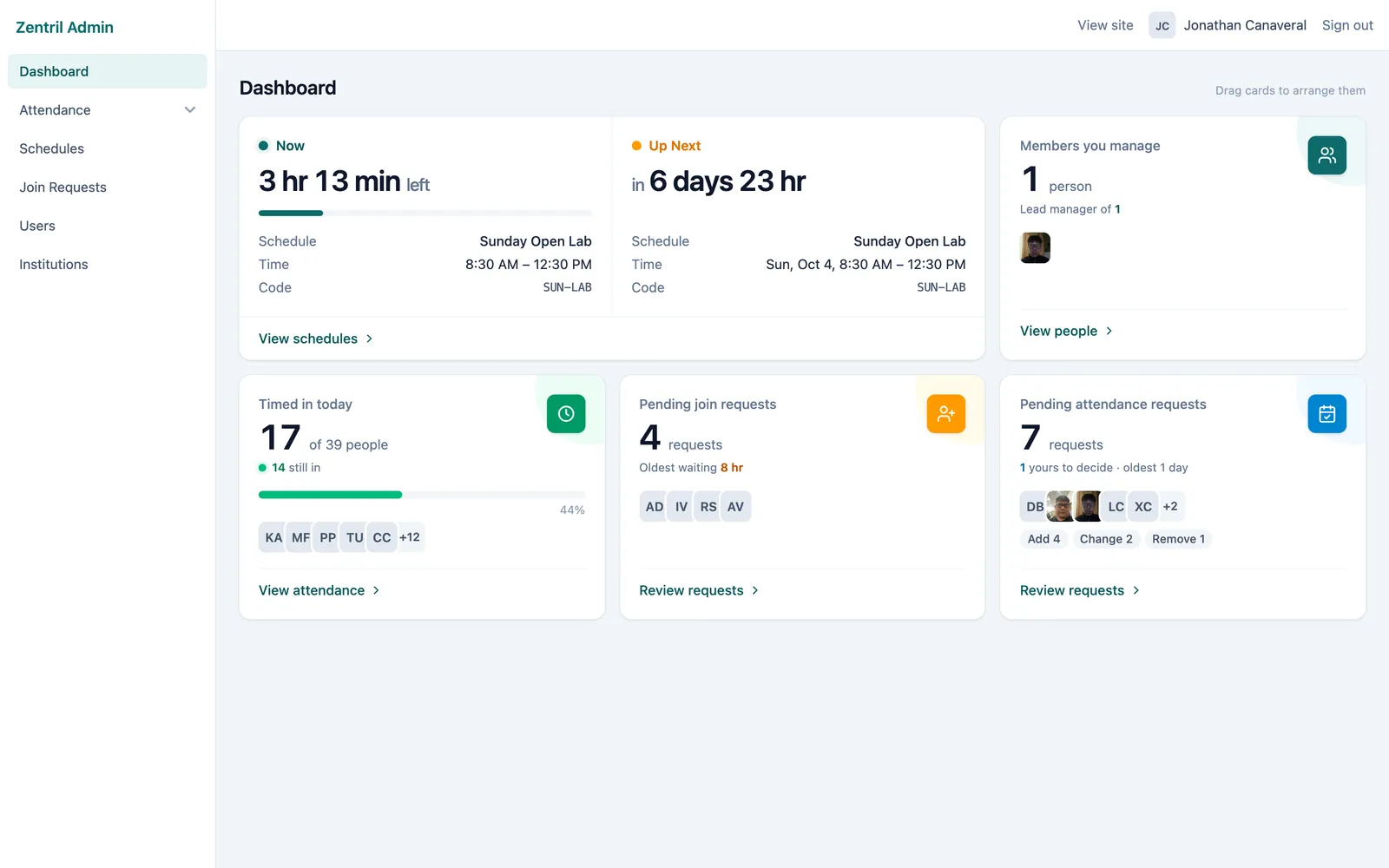
Who has timed in today, what is waiting on you, and your own schedule. Cards you can drag into the order you want.
- Timed in today: who has checked in, out of the people you see, and who is still in.
- Pending join and attendance requests, with how long the oldest has waited.
- Users, Institutions, Schedules and Attendance records with search and filters.
- Managers see only their people. Supervisors see them read-only.
How it works
A member’s first week, in four steps.
- 1
Sign in with Google
One tap on the phone. Phones and tablets open the app, desktops open the dashboard.
- 2
Join with a code
Members enter their institution’s enrollment code, fill in their details and take a short face scan. That sends a join request.
- 3
Approve and organize
An admin approves the request, choosing a role, reporting managers and tags. Members join the schedules that apply to them.
- 4
Attendance takes care of itself
Face scans at the site record time in and out. Corrections come in as requests, and managers decide them from the dashboard.
Corrections
Missed a scan? Send a request, not an email.
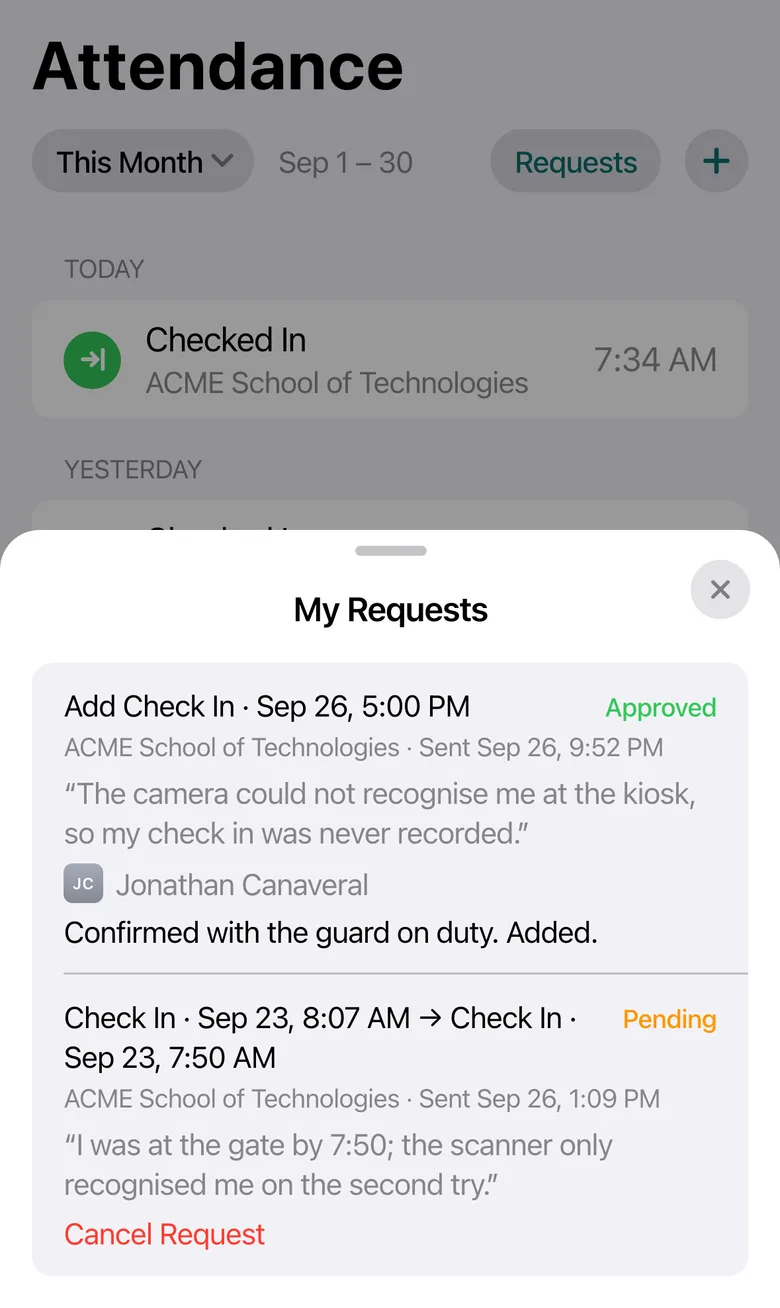
A member adds the missing check-in or check-out with the date, time and a reason, or disputes an entry with a corrected time. Their lead manager or an admin approves or declines it with a remark, and the member sees the outcome under My Requests.
- Add a missing entry
- Dispute a wrong time
- Cancel while pending
- See who decided, and why
FAQ
Questions people ask first.
How is attendance recorded?
A site at your institution scans a member’s face and records a check-in or check-out. The entry shows up on their phone within seconds. Admins and managers can also add an entry directly, and an approved request from a member adds one too.
Do members need to install an app?
No. Zentril runs in the browser on any phone or tablet. Members can add it to their Home Screen for a full-screen app with its own icon, and the app shows them how.
What if an entry is missing or wrong?
From the Attendance tab a member sends an Add Missing Entry request, or opens an entry and disputes it with a corrected time or a reason. Their lead manager or an institution admin approves or declines it, with a remark the member sees.
Who can see someone’s attendance?
The person, their reporting managers, and the admins of their institution. Supervisors see it read-only. Zentril staff see every institution to support it.
Is Zentril only for schools?
No. An institution can be a school, a workplace or any other organization. Each has its own enrollment code, timezone, sites, tags and schedules.
How do schedules work?
Admins create Global schedules anyone in the institution can join. Managers create schedules for their own team. Each one repeats on chosen weekdays or falls on a single date, in the institution’s timezone, and no one can be on two schedules that overlap.
See it on your phone.
Sign in with Google, enter your institution’s enrollment code, and you’re in. Admins land on the dashboard from a desktop.